




American Express @ Work® Reporting1
User Guide

This guide provides an overview of @ Work Reporting, the self-service reporting platform for clients of American Express Global Commercial Payments. This guide covers navigation of the tool and the setup process for Standard and Customised reports. For information about the Standard and Customised formats, as well as the specific report templates we offer, please refer to the @ Work Reporting Guide, which can be found under Reporting Help on the @ Work Reporting home page.
For more detailed instructions we offer a concise, self-guided training module as well as live instructor-led online training sessions. Information can be found by visiting Reporting Help on the @ Work Reporting home page.
Getting Started
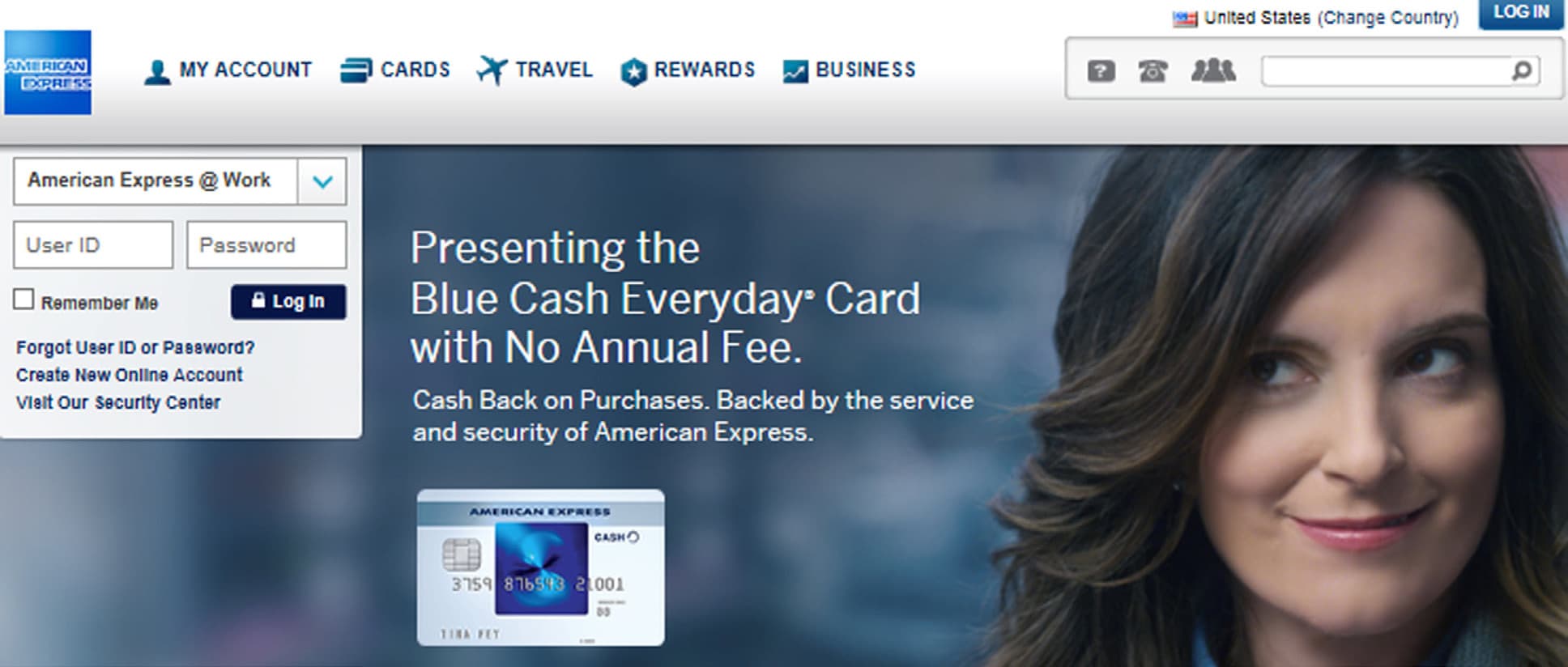

@ Work Reporting gives you the power and flexibility to turn information into actionable insights that work for you. When you have a comprehensive picture of your spending, you can create real impacts for your business.
LOG ON: Access American Express @ Work by visiting the American Express Home Page at www.americanexpress.com and select the @ Work Reporting link.
The @ Work Reporting tool has an easy to use layout and a convenient left-hand navigation menu.


Offers Carousel
-

-


The Session Timer tells you how many minutes remain in your current session. To refresh this timer perform any action on the current page.
-


The Reporting Help link provides you with help and best practice documents.
Set Preferences for your @ Work Reporting experience such as your timezone, language, default currency, and email notifications.Toggle the display of Alert Messages on this screen, notifying you of any system issues, scheduled upgrades, or maintenance.
-


VIEW REPORTS -
Available: All reports available for viewing.
Upcoming: A complete list of your scheduled reports.
Deactivated: A list of schedules and related reports that have been deactivated.
-


BUILD REPORTS -
Most Popular: A list of the most commonly used report templates to support your programs.
All: The entire list of report templates available for your use. (Additional reports may be enableddepending on your particular program.)
Saved: Your personally saved Customized report templates.
-


Search for an item in the selected page.
-


Filter the items in the selected view using helpful options.
View Reports: Available Reports
The Available Reports section allows you to view, open, and manage your previously run reports.


Offers Carousel
-

-

Sort the reports in the selected view alphabetically or by date.
-

Visual thumbnails depict the Type of report (i.e. Airplane for Airline Reports).
-
The number on the thumbnail represents how many reports are in the grouping.
-

Click the arrow next to the report name to reveal setup information and previous iterations of the same report.
-

Click on the icons to open/download your report. The Icons depict the type of report and its format.

OPTIONS — CUSTOMISED REPORTS
Customise: Takes you to the Customised setup screen.
Delete Report: Deletes a specific report.
Export: Takes you to Export screen with options for Excel, PDF, CSV, HTML, and plain text.
OPTIONS — STANDARD REPORTS
Customise: Takes you to the related Customised setup screen with the hierarchy preselected.
Deactivate Schedule: Will no longer run automatically, moves to Deactivated page.
Delete Report:Deletes a specific report.
Delete All Reports: Deletes all reports in a group.
Delete Schedule: Deletes schedule, but not report.
Modify Setup: Takes you to Standard setup screen(or Customised schedule screen).
Rename Schedule: Quickly rename the schedule.
Rerun: Request reruns of previous months (up to13 months).
View Reports: Upcoming Schedules
The Upcoming section displays a listing of all scheduled reports.


Offers Carousel
-

-

View the report title and use the arrow to reveal more information.
-

Use the Options button to manage your schedule settings, request reruns, or deactivate/delete the schedule.
-

View current Setup Information.
View Reports: Deactivated Schedules

The Deactivated section displays any report schedules that have been deactivated. Deactivation of a schedule means the report will no longer be generated automatically at the scheduled frequency. Any reports that were generated before the schedule was deactivated will still be available via the corresponding File Type icon. Reports that have not been viewed or downloaded in a 120-day period are automatically deactivated.
The Options menu allows you to reactivate or fully delete report schedules, as well as delete individual reports that ran under those schedules.
Build Reports: Most Popular

The Most Popular section displays a list of our most frequently used and most recommended reports,including the latest Dashboard reports.
Build Reports: All
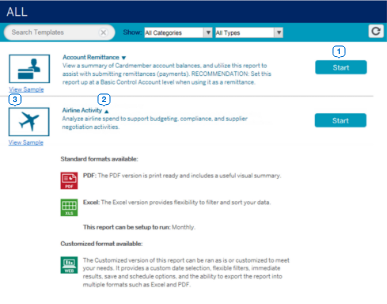
This view displays all the reports that apply to your organisation’s programme with American Express. Refer to the Report Guide under Reporting Help for details about all of our reports.


Offers Carousel
-

-

Click the Start button to begin the report setup process (for reports that are available in both Standard and Customized formats, you will be prompted to choose your format on the screen that follows).
-

Click on the report name for information about available formats.
-

Find more information and screenshots of the available formats via the View Sample link.
Report Builder: Create a Standard Report
Once you have chosen to run a Standard report, follow the onscreen steps to set up the report to run automatically. Keep in mind that Standard reports will not run immediately; timing is based on the of the report as well as your programme’s billing cycle. For example, monthly reports run every month after your programme’s cycle ends. Once a report has run it will be posted to your Available Reports list and you will receive a notification.


Offers Carousel
-

-

Use the Filter when searching for specific types of program hierarchies.
-

Select the desired Hierarchy or hierarchies and click the right arrow icon to move your selection to the right side of the screen.
-

Your selection will appear here.
-

To save this hierarchy selection for future reports,click the Save as Default button.
-

Click Next to continue with the setup process.
-

Set the Frequency of the report in the bill date section. In this example, Monthly is the only option, however some Standard reports let you choose between monthly, quarterly, etc.
-


Additional Options allow you to rename your report, set currency, language, format, and more.
Recommendation: Update the name of your report for easier identification when it appears on the Available Reports page.
-


Check this box to request a report from the previous available billing period. All subsequent reports will be delivered to your Report List after each billing cycle.
-


Once you have selected your options, click Run Report.
Standard Report Results
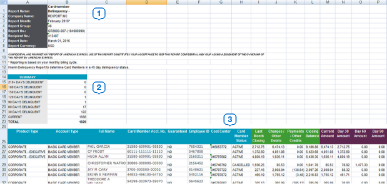
Standard reports can be viewed in either PDF or Excel formats. The PDF format offers on-screen insights highlighting and summarising key data. The Excel format offers additional data elements.
PDF Version


Offers Carousel
-

-

Report name, month, currency and other report-specific details.
-

Summary level data highlighting key insights.
Excel Version


Offers Carousel
-
-
Report name, report month, Reporting Group and other report-specific details.
-
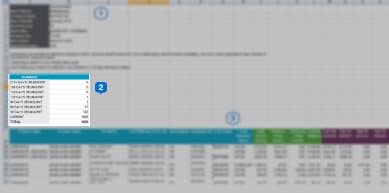
A summary of the report.
-
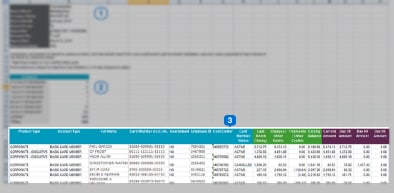
Use the Excel version to manipulate, sort and analyze data.
eAccount Review

Available in PDF or PowerPoint, this unique Standard Report provides a summary of your programme including key metrics and meaningful insights into your company’s spend.
› Multiple pages with data and insights tailored to your programme.
› Charts and graphs provide visual representation of overall programme spend.
› Key insights to help you make important,informed decisions.
Appendix: Understanding the Prompts and Filters

FILTER STYLES -
Many of the optional filters on the Filters tab of a report template require an item to be selected prior to adding any filter values. Select the option from the Available box and use the arrows between the boxes to select your choice.
Example: Filtering by a Card Member Account Number

1. Click Card Member Acct. No. from Available box, click on right arrow to select it.

2. Click on Value link, enter value into box, click OK.

3. Click on ID1 link, then select DISPLAY_REPORT.
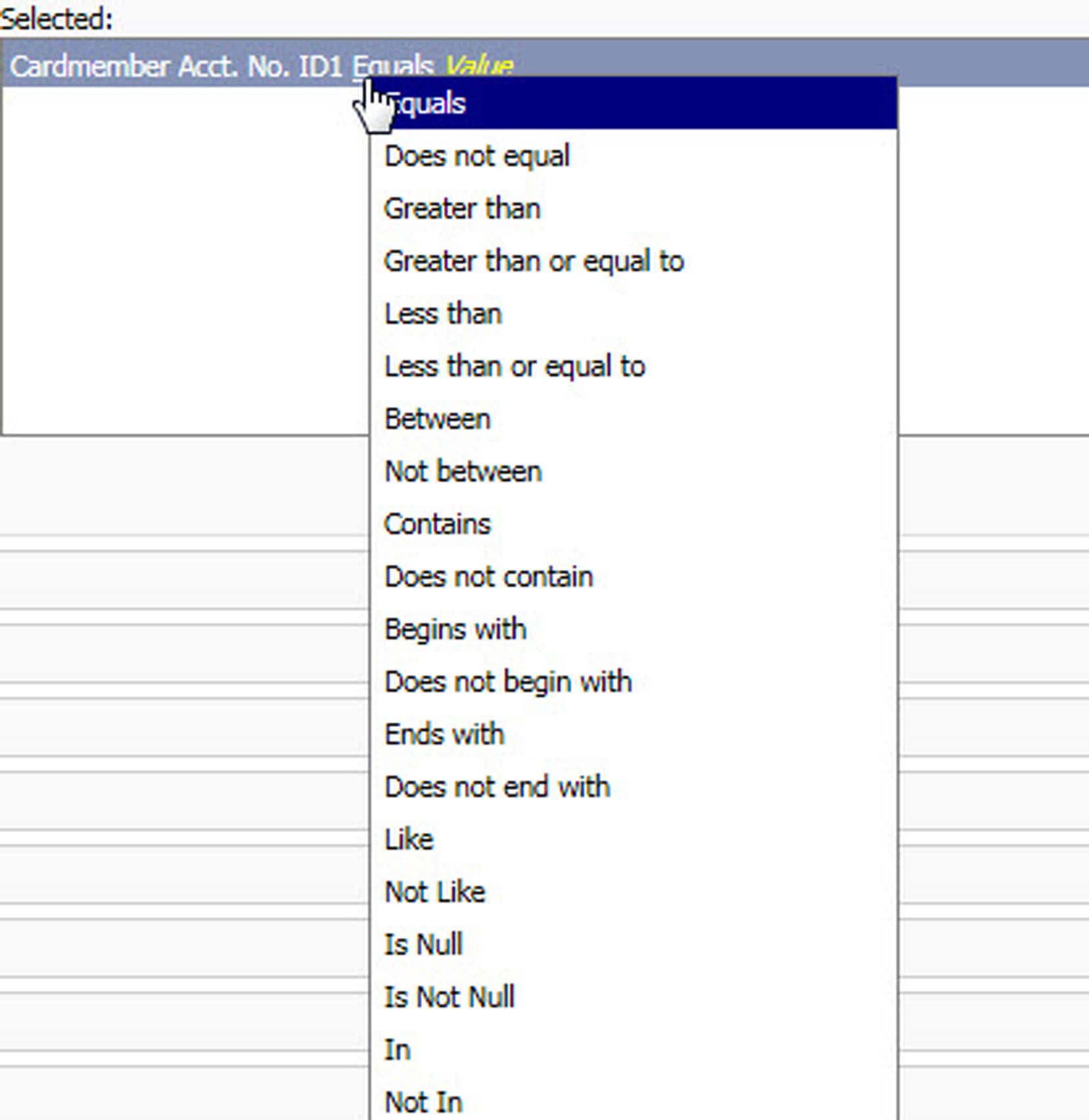
4. Click on Equals to change selection logic (if needed).

Some filters require you to select the specific value(s) you’re seeking. Expand the selections using the +. Once you have made your selection use the arrows between the boxes to select your choice.
COMMON FILTER COMBINATIONS


Tip: When selecting multiple values on a single filter, always select the “Any selection” radio button option if it appears. This will ensure the correct logic is applied.
Terms & Conditions
1Use of American Express @ Work® is restricted to employees, contractors and/or agents that the Company, and its representatives designate for the sole purpose of performing online account queries and maintenance, including accessing and/or creating reports relating to the Company's American Express® Corporate Card programs. @ Work is available to all companies with an American Express Corporate Card program.
Enrollment is required. To enroll in @ Work please contact your American Express Representative or call 1-888-800-8564.
© 2020 American Express.
Recommended Articles
Online Card Applications
Global Apply for Card Quick Start Guide
Read the full article to know the detailed steps to apply for a Card using our easy-to-use tool.
Online Card Applications
GAFC – Client Launch Announcement
Inform your employees easily about the launch of Global Apply for Card method using our announcement template.